Seagate Freeagent Xtreme review

Saturday, November 29th, 2008

There’s never enough hard drive space and hard drive prices keep going lower and lower.  Seagate has a nice 1TB external drive called the Freeagent Xtreme for $229.99 but was on sale at Fry’s for around $180 or so.

The shape of the drive is not the usual rectangular box. Instead, it’s sloped in the front and can be either used standing up (see photo on left) using a stand, or flat on top of another device, like your desktop computer.

The specs are:

USB 2.0: up to 480 Mb/s
FireWire 400: up to 400 Mb/s
eSATA — up to 3Gb/s
Rotational Speed: 7200 RPM
6.89″ in H x 1.33″ in W x 6.77″ in L (175.0mm x 33.7mm x 172mm)
Weight: 3.06 lb (1.39 kg)

The photo below shows the interesting front light indicator that shows the drive activity.  I’m not sure if all this light show is great or not. I think I’d rather just see a LED indicator that shows me on/off and active/not active.  But these days, I guess you need a gimmick to sell external drives.

The picture below shows the back of the unit.  This side looks more like a conventional external drive with the power connector, eSATA, firewire, and USB2.0.  It’s not ultra skinny or small but slender enough to slip between other junk on your desk.

What I like most about this drive is it’s automatic power saving mode.  When the drive has not been accessed for a while, it will automatically power down and save electricity.  Nice green touch.  You pretty much forget about it until the OS tries to access it, then it will turn on and the crazy light comes on in the front.

If you need more hard drive space, this is a good quiet addition to your desk.

Vantec NexStar HD dock review

Tuesday, November 25th, 2008

When my old HP desktop’s motherboard crapped out on me, I had to figure out a way to move all the data from the SATA drive over to my new HP computer.  If my old computer was working, I could just use the Vista transfer program to move everything over.  But since the old computer is dead, I can’t do that.

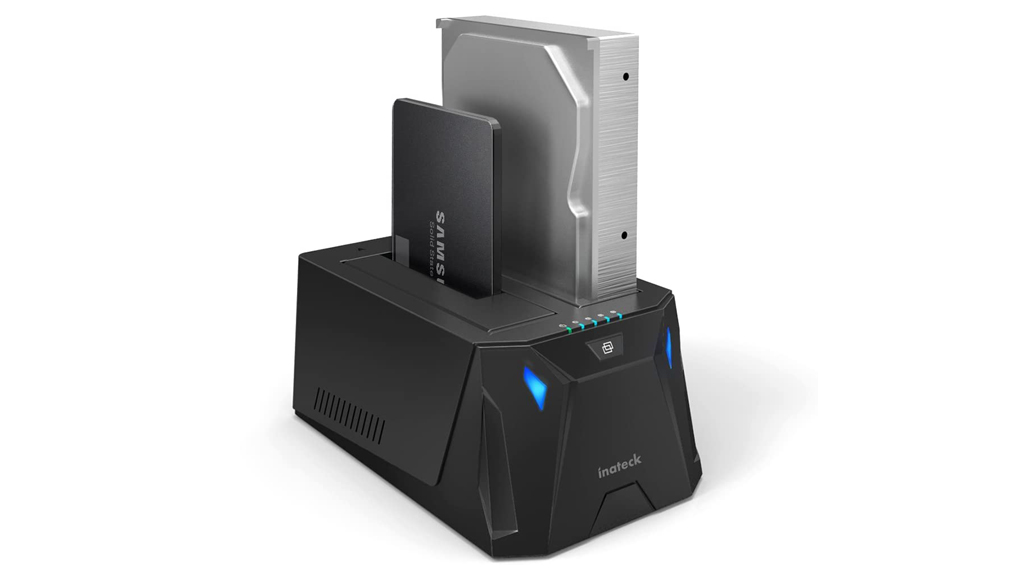
The easiest way to do this is to get a SATA to USB2.0/eSata converter, and of course, to get something like that, you just go to your local Fry’s.  What I found there was the Vantec NexStar Hard Drive Dock (MSRP $39.99).

This docking station will accept both 2.5″ and 3.5″ SATA drives (click on picture below). According to the Vantec website, their new version also has Firewire, but the one I got doesn’t have that connector.  Their specs say that you can get transfer rates Up to 480Mbps with USB 2.0 and transfer rates Up to 3Gb/s with eSATA. I didn’t actually do any testing of the speeds that I got with it.

On my first use, for some reason, I could only see one of the partitions on the drive, but when I tried it again later with another computer, I was able to see both partitions. I don’t know what caused this difference, but I suspect that it may have been caused by a NAS drive being mapped over the drive.

Otherwise, I didn’t have any problems with this docking station and it looks great on my desk, and I’m very happy with it.

HP Pavilion m9450f blows up

Friday, November 21st, 2008

You may recall my older article about having problems with my first HP Pavilion ze5470us desktop from Best Buy, that was DOA and had to be replaced.  So when I upgraded to yet to another HP Pavilion m9450f, you may have wondered if there was something wrong with my brain.

At first, everything was going good. Except for compatibility problems with Vista, the computer hardware was working fast and smoothly…

Until 3 weeks later…

Just about the time I finally had everything installed and moved over from my old hard drive, I turn on my computer and I get a blank screen.  Oh crap.  Not good.

HP has a built in self test program by pressing F9 upon power-up.  This is actually a nice touch.  The screen below shows the result of the testing.  You can click on the picture to see a larger version.

Notice that the hard drive is dead. Also, notice where the diagnostic says, “Suggestion: Backup your important data” WTF? How am I supposed to backup my dead hard drive? It also says to call HP support.  Which I did.

HP support is one of the worst support call centers in the industry.  It took them 55 minutes to tell me that my hard drive was dead and that they would send out a new one to me.  Most of that time, I was on hold waiting for the 2 people on the line to read their script so they can tell me what I already told them.

Of course, I didn’t wait 6 days to get the replacement hard drive.  I went straight to Fry’s to get a 1TB SATA drive so that could start restoring my new computer. What’s really frustrating is that it took me about 3 weeks to finally get everything restored from my old computer and all the programs re-installed.  Now, I have to go through the entire procedure again.  What a pain.

The picture below shows the HP’s guts out.  The cage for the hard drive comes out so that you can install the drive.  It’s not as clean as DELL’s case but it’s not the worst one I’ve seen in my life.  I give it a 6 out of 10.

So I finally did get my replacement hard drive after about 6 days. However, it took about 2 weeks to get the “system restore” DVDs that HP sent out. Luckily, I did create these DVDs myself while the computer was still working so I didn’t have to wait.

After I got the replacement drive, I added that to the system to use as a backup internal drive. I had to go into the BIOS to tell it which drive to boot from, but otherwise, it all works fine.

In conclusion, it’s obvious that I’m as stupid as stupid does.  Even after having problems with my first HP, I still went out and bought yet another HP and paid the price.  To be fair, the hard drive dying is a Seagate problem, but HP gets the blame for putting it in their system.  It would have been a lot less work for me if the new HP was DOA instead of dying after 3 weeks.

So I’ll continue to use my HP and see how many weeks it lasts this time.

How to copy bookmarks to Firefox 3

Monday, November 17th, 2008

Now that I have my new computer, I had to move by bookmarks from my old drive.  In the old days, to copy bookmarks over to a new computer, all you had to do was copy bookmark.html or something similar to that. But now, with Vista, and new versions of new browsers, it’s getting harder and harder to do this simple task.

As you may have read, my old HP died and had to be replaced with a newer Vista version of the HP desktop. One of the first things I wanted to do was move over the bookmarks from Firefox 3, which is my main browser that I use.  As it turns out, not so easy when you don’t have your old computer working anymore.

The first thing to do is to be able to access hidden folders. To see them, you have to open Explorer (right click on Start, then click Explorer).

As shown below, next click on “Organize”, then click on “Folder and Search Options”.

Next, you’ll get a window as shown below. Click on the “View” tab, then scroll down to “Hidden files and folders.” Now, click on “Show hidden files and folders,” as shown below.

Now, open Explorer again and go inside your username, then “AppData”, which was the hidden folder, followed by “Roaming,” then “Mozila,” then “Firefox,” and “Profiles,” as shown below.

Note that “Z” is my username (so replace with yours), and the weird folder after “Profiles” will be different and is apparently a randomly generated folder name.

Now, the following files are of interest:

  1. places.sqlite
    This is the Firefox 3 bookmarks and browsing history.
  2. cookies.sqlite
    The cookies
  3. formhistory.sqlite
    Saved entries from web forms and the search bar.
  4. key3.db and signons3.txt
    Both files are needed for saved passwords.

The directory where these files are located is shown below.  Now copy these from the original drive over to the new computer.  Done!

APC UPS XS 900 review

Tuesday, November 4th, 2008

Last week, there was a power outage in my area.  Although I did have a UPS (Uninterruptible power supply), it’s pretty old and there was just enough time for me to turn everything off.  That was my wake-up call to get a new UPS.

After looking around, the price range was from about $50-$200 ($500 for professional units).  Not wanting to go crazy, I decided to get one in the middle range of the APC line and got the XS 900 (MSRP $129.99).

This unit is rated at 540 Watts @ 900 VA so this is more than enough power for my computer and monitor. For a tad more money, I could have gotten a display on the unit but since it’s connected via USB to my computer, I didn’t see a need for that data right on the unit itself.

The picture below shows the front of the unit with LED indicators for the various stats.  The replace battery is a nice touch compared to my old unit which had no indicators except for on and off.

The back of the UPS is shown below with 6 battery backup plugs and 2 surge protected plugs. There’s also I/O for a modem and cable, as well as the USB2.0 connection to your computer.  This last bit turns out to be a great feature as you’ll see below.

The image below (click to see larger version) shows the status screen of the APC monitor program that comes with the UPS.  It gets the information via the USB directly from the UPS.  The bar graph below shows that after connecting my computer, monitor and Buffalo NAS RAID, it still has plenty of juice left and tells me that I have about 25 minutes of power.

I saved the best for last.  Using the APC monitor program, you can also configure your UPS alarm, which makes a loud high pitched beeping sound when the power has gone down.  Of course, normally, this is a great feature to let you know that you need to save all your data and turn off your computer.

The feature I love here is you can disable the alarm sound between specific hours (see image below and click for larger version).

As you can see above, there’s a setting to disable the alarm between specific hours of the day.  I wish I had this exact same option on my cell phone so that it would automatically turn off the ringer during the hours when I’m sleeping.  This option alone on this UPS makes this a big thumbs up from me.  Bravo!

HP Pavilion m9450f review

Tuesday, October 28th, 2008

My old HP Media Center PC with just 250MB of RAM felt super slow compared to my new Toshiba Qosmio with 2GB of RAM. So, I decided I’d add some RAM to my old computer.  Although I haven’t done a RAM upgrade in probably 10 years, I’ve built computers from scratch in my previous life so there should be no problems.

Fast forward to me slapping myself for blowing up my motherboard without even backing up my hard drive.

Maybe I subconsciously wanted to blow up my computer so I can buy a new one.

But I digress.

In need of a new computer, I quickly checked my options. The Dell looked good but I didn’t have time to order something online. I needed a computer today. Right now. Best Buy didn’t have what I wanted in stock so off to my good old stand-by Fry’s I go.  I called ahead and had them put my HP Pavilion aside for me, but I knew I had to get a bunch of other stuff as well.

As you can see from the picture above, basically, this unit looks like my old Media Center.  But inside, the specs are a little different:

  • Intel Core 2 Quad CPU Q9300 @ 2.5GHz (5.9 Windows Experience Index)
  • 8GB DDR2-800MHz dual channel SDRAM (4×2048)
  • 750GB 7200 rpm SATA 3Gb/s hard drive (686GB usable, 12.3G used by restore partition)
  • 512MB NVIDIA GeForce 9800GT, 2 DVI (VGA and HDMI adapters)
  • LightScribe 16X max. DVD+/-R/RW SuperMulti drive
  • Windows Vista Home Premium SP1 64bit
  • Built in WiFi
  • 6 USB2.0 (4 in the back, 2 in the front)
  • 2 FireWire (IEEE 1394) (1 in the back, 1 in the front)

As you can see, this baby is fully loaded.  But as per usual, I’ve got some complaints.

The first thing I noticed was that they changed the keyboard.  Now, the weird function keys are on the left side.  I’m used to having the CTRL key in the lower left corner of the keyboard and this bothered me enough to switch back to my old keyboard.  Why do they insist on changing stuff that works?

I totally understand laptops coming with built-in WiFi these days, and that’s great.  But if you don’t have a hard wired Ethernet coming to your desktop, maybe you need to move your desk.  For me, the built in WiFi is a total waste.  I’ll never use it.

The 2 DVI outputs is great.  I wish I had the money and space for 2 monitors.  However, they don’t give you even one DVI cable.  I had to use my old analog cable.

No eSATA port.  Even my Toshiba laptop has a eSATA port.  WTF?

Unlike my old HP desktop, the doors on the front open like doors, instead of sliding to the side.  It’s not horrible but it kind of gets in the way of the cables a little.  Another example of changing what worked before to something else that doesn’t work as well.  But I have to admit, it does look better.

There’s an “Easy Backup” button on the front to start your backup.  Really?  Do we really need a button dedicated to this?  How about just using the scheduler to backup your drive automatically without even pushing a button.  Isn’t that easier?  How dumb do they think we are?  Never mind.  Don’t answer that.

The 64bit version of Vista does have compatibility problems.  Most of these can be solved by running the application in Windows XP SP3 mode.  However, a couple of programs I use do not work properly.  Even after upgrading to the current version, Multiplicity does not work completely. To make matters worse after my crash, the Memeo backup (and restore) doesn’t work in 64bit mode.  I contacted them and they confirmed that it currently does not work with Vista 64bit.

Alright.  Enough complaints.  What do I like about this puppy?

They put a “technology pad” on top of the computer.  Sounds stupid but it works great.  It’s a lowered area on top with some type of anti-slip covering as well as a guide for the cables so everything from your iPhone, MP3 player, digital camera and camcorder can rest easy and clean on top.  This is the opposite of the PS3 which is round on top so everything slips off.

Coming from my old HP with 250MB of RAM, this computer screams.  As fast as I can open up windows, they open.  I rarely have to wait for the computer.  It’s usually waiting for me, or an external device.  But the speed can really spoil you.

Unlike the old HP which had the motherboard on the right side, this one has the motherboard on the left. No biggie.  It’s actually better for me since the left side is against the wall.  The inside looks clean and well organized.  I’ve seen better designed cases but this one is up there.

All in all, I’m happy with my new desktop. It’s fast, and I’m finally getting used to Vista.  It’s not so bad.  I’m starting to like it.  Just in time for Microsoft to come out with Windows 7.

How to setup Windows as media server for PS3

Tuesday, October 7th, 2008

Once you’ve explored your Playstation 3, one of the next things you’ll want to do is play music from your computer on your HDTV via the PS3. To do so, you’ll need to use Windows Media Player 11. If you don’t have that version, you’ll have to upgrade from Microsoft’s website.

If you are using Windows XP Media Center 2004 or earlier, you will not be able to upgrade your Media Player without upgrading your Media Center to 2005. There is no easy way to upgrade (paid or free) without installing a new version of Windows XP from what I can figure out. This is the problem people with Netflix accounts are having.

But I digress.

Once you have Media Player 11, go to “Tools”, then “Options” to open the window shown below.  If you don’t see the menus at the top, right-click in the area with “Now Playing” listed, then click on “Show Classic Menus.”  Optionally, you can just right-click that area, click on “Tools”, then “Options” directly from the right-click menu.

Once you get to the Options window, you will see this

Windows Media Player 11 options window

First, click on the “Library” tab.  Next, click on “Configure Sharing…” as shown above.

Next, you will get the window shown below.

Now, turn on “Share my media to:”, then click on the “Unknown Device” as shown above.  The PS3 comes up as this unknown device.  You’d think the PS3 would come up as “PS3″ or at least “Sony.”  Now, click on “Allow”, then “OK”, then “OK” on the previous window to close the options.

Now, go back to your PS3 and you’ll see a new icon that says, “Windows Media Player 11″ under the music section.

You’re done!  Enjoy.

My attempt at moving to Vista (Part 2)

Friday, October 3rd, 2008

As you may have read, I purchased a new Toshiba Qosmio laptop, which came with the “dreaded” Windows Vista operating system.

The first thing I wanted to do was make my version of Vista as close to what I was used to doing on my old XP systems.

One of the things that I like to do is put WordPad in my “SendTo” folder so that I can easily open any weird file using WordPad to look at it quickly by right-clicking on an item, then using the “Send To” option.

For the life of me, I could not find the SendTo folder in Vista.  After searching the “Interwebs,” I finally found out that all you have to do is type “shell:sendto” in the “Start Search” box from the Start Menu and you will get to the folder as shown below.  No wonder I couldn’t find the folder.

Next, create a shortcut to WordPad on the desktop, then drag-and-drop it right into the “SendTo” folder.  Now, anytime I want to open a file, I right-click, then “Send To.”  Nice.

Next, I had a strange problem with my Firefox3 where every time I exited the program, my history would get erased.  I looked at the Options page and found the “Always clear my private data when I close Firefox” box checked on.

Red checkbox indicates this option being turned on automatically

Red check box indicates this option being turned on automatically

Even when I turned this option off, the next time I would use Firefox, the option was turned on again.  Weird. The Toshiba came with Norton360 installed so I decided to take a look at it closer.

Red check box indicates option that needs to be turned off

Red check box indicates option that needs to be turned off

When I went to the “Setting” page in Norton360, sure enough, at the bottom right corner, there is a “Firefox Privacy Cleanup” option that was turned on by default.  Huh?  Why are they so paranoid about the history in Firefox over there in Norton land?

All I had to do was turn this option off, then everything was working fine.

Another step closer to making Vista like my old XP.

My attempt at moving to Vista

Thursday, September 25th, 2008

As you may have read, I purchased a new Toshiba Qosmio laptop, which came with the dreaded Windows Vista operating system.

The first thing I wanted to do was make my version of Vista as close to what I was used to doing on my old XP systems.

After setting the Desktop background, and putting some shortcuts on the desktop, I noticed that the icons of the shortcuts seemed to be bigger in Vista than XP.  Upon right-clicking on the desktop, and going to “View,” I noticed “Medium Icons” was the default size of the icons.  I set it to “Classic Icons” and they turned back to the smaller size that I was used to.

However, the vertical spacing on the icons seemed to be too large and I needed to reduce it to make the icons closer together.  After playing around a bit, I figured out how to do this as follows:

First, right-click on the desktop, then click on “Personalize,” which is at the bottom.  You will get the following window.

Highlight shows where to click

Highlight shows where to click

Click on the “Window Color and Appearance” option.  You will then get another window as shown below.

Click on the highlighted button

Click on the highlighted button

Now, click on the “Advanced” button and get the next window.

Click on the highlighted pull-down menu

Click on the highlighted pull-down menu

Now click on the highlighted bar and select “Icon Spacing (Vertical)” and change the size to the desired number, then press OK.

Done!  If I keep working at it, I’m pretty sure I can get Vista to look exactly like XP.

Logitech V540 Nano Cordless Laser mouse review

Sunday, September 21st, 2008

When you have a laptop that you move around a lot, and like using a mouse (instead of the built in Touchpad) it becomes a pain to have to plug the receiver in and out of the USB port.  After a while, you can feel the USB port starting to feel like it’s getting loose.

Enter the Logitech V540 Nano cordless mouse shown below.

Close-up looks like Batman mouse

Logitech V540 Nano Close-up looks like a Batman mouse

The mouse comes in Batman black and costs $34.99 at Best Buy online ($37.88 with tax). I noticed that the price has gone up to $49.99 for some reason.  I guess I got lucky.

But I digress.

What’s cool about this mouse is what Logitech calls the “Plug-and-forget nano-receiver.”

Receiver size comparison with VX Revolution (left) V450 Nano (right)

Receiver size comparison with VX Revolution (left) V450 Nano (right)

The picture above shows the Logitech VX Revolution on the left, and the V450 nano on the right.  The VX scrolls faster and uses only one AA battery, instead of 2 for the nano (see picture below).

Battery compartment and receiver storage spot

Battery compartment and receiver storage spot in front

The VX also has a bunch of other buttons that I never use.  The manual for the Nano says that the 2 AA batteries will last 12 months.  I haven’t used it that long yet but that’s a real plus if true.  I hate having to replace batteries.  There’s also a battery low LED indicator.  That’s a nice touch.

"Nano" receiver plugged into back of Toshiba

"Nano" receiver plugged into back of Toshiba

The picture above shows how small the receiver is plugged into a USB port on my Toshiba laptop. As planned, I’ve left the receiver plugged in to my laptop with no problems.  Plug-it-and-forget-it.

Logitech claims that the 2.4GHz cordless connection is very reliable signal and to put it to the test, I connected my Toshiba’s HDMI output to my HDTV and controlled the laptop with the Nano mouse from across the room.  Everything worked as advertised.

I’ve only been using it for a few weeks but I love the plug-and-forget it reveiver.  But this tiny revceiver has made me think why the laptops don’t just come with this built into the unit.  They have the Wi-Fi built in. Why not this?  I guess there’s no good standard.  Standards are good for something.  This would be one case of that.

For me, this is a no-brainer.  Anybody with a laptop, using a wireless mouse, should get this mouse.  There’s no downside, and it works great.  I highly recommend it.