Mobigamedepot.com Opens

Sunday, January 17th, 2010

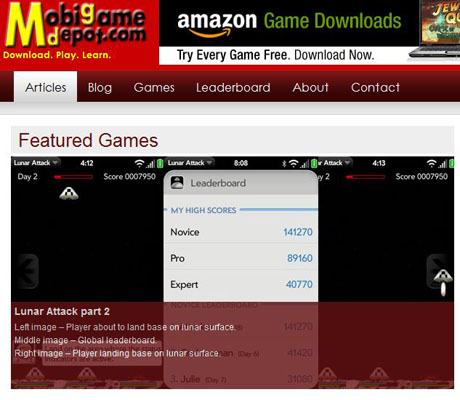
Regular readers of this blog may have noticed a reduction of posts here. The reason for this has been that I’ve been working on Palm WebOS games and a corresponding website mobigamedepot.com.

This new website will be the portal for the games that I will be developing and I will post some behind the scenes details about the development work here on Cochinoman for your reading pleasure.

For starters, why did I choose the Palm WebOS platform? When the iPhone first came out, I wanted to do development work for it but since I’m not a Mac user, there was that learning curve and the SDK was not available at first. Then before I realized, everybody and his brother was on the iPhone platform and it was too late to get in the game.

Fast forward 2 years and when the Palm WebOS was announced at CES last year, my interest was again peaked. I followed the SDK development closely and managed to get on the software developer program as an early developer.

The WebOS SDK has a lot of limitations, especially for real-time games, but it also makes it less likely that the big boys will be getting on this path. As it turns out, there is a new PDK that was announced at this year’s CES that allows for low level C/C++ coding and the big boys (e.g. EA) has come out with their 3D games for the WebOS.

This last move still doesn’t deter me from working on my games because the big budget EA games will have to sell for $7-$10 and I will target the below $2 market for my games. There’s no way that EA could sell their games for 99 cents and still make money because of their overhead in developing these heavy games.

My first released game is “Lunar Attack,” which is basically an upgraded “Missile Command” with more features. In the future, I will post about the decisions that were made regarding this first game.  The second game I am working on is a scrolling sprite based game that takes place in a Pyramid.

If you are thinking about developing games on any mobile platform, you may find the articles interesting.  Even if you are thinking about non-game development on a mobile device, you might find something interesting in there.

Splashscreen WordPress plugin version 0.30

Friday, December 4th, 2009

Since the last release of my WordPress plugin Splashscreen version 0.20, there’s been many requests for new features. You may also want to read the original post for version 0.10 for completeness.  One of the most requested feature was to allow search engine bots to get the blog content so they can traverse the website properly.

Ask and ye shall receive… version 0.30 of the plugin, that is.

To control the new feature, I’ve added some new options in the settings as shown below:

splashscreen1

Click on image for large version

Enable Overlay:
When this option is enabled, the splash screen will be an overlay on top of the content of your blog page. In other words, your blog will still be there, but the splash screen will be on top of your page. This way, the search engine bot can still “see” your blog, even though your visitors cannot while the splash screen covers the contents.

If you turn this option off, you will get the non-overlay version of the splash screen which will NOT have your blog contents “under” the splash screen.  I kept this feature in the plugin for backward compatibility for people who are using it right now.

Overlay Opaque:
The new overlay splash screen is made up of a background and a dialog-type box with links, as shown below.

splashscreen2

Click on image for large version

Normally, you would want the background to be opaque (cannot see-through) so this option should be enabled. However, for some bloggers, you may want to have the background transparent so that you can see a little of what is on your blog. Of course, this would not be a good idea for “adult” websites, but for people using this plugin for non-adult websites and wanting to force the users to agree to your “terms of service,” you might want to tease them with a preview of your blog.

Overlay Background Color:
This is the color of the background using normal CSS specifications (e.g. #000000, rgb(0,0,0), black). If you don’t know what CSS colors are, see this article.
The rest of the options are the same as in version 0.20. However, if you are using the new “overlay” feature, you must use a new template. The default overlay template is called “splash-overlay.htm” as shown below:


<script type='text/javascript'>
function setsplash() {
   setCookie("splash", "1", "", "/");
}
</script>

<div style="left: 50%; top: 50%; position: relative; background-color: #F5F5F5; margin-top: -150px; margin-left: -300px;
 width: 600px; height: 300px; padding: 30px;">
 <center>
    <table border="0">
       <tr>
          <td colspan="2" align="center">
             <img src="<?php echo plugins_url('splashscreen/images/wordpress-logo.png'); ?>">
          </td>
       </tr>
   <tr>
      <td colspan="2" align="center">
         <script type="text/javascript">checkcookies();</SCRIPT>
            <h3>
               To enter this website, you must agree to the terms below.
            </h3>
         </td>
      </tr>
   <tr>
      <td colspan="2" width=100%>
         <FORM>
            <P><TEXTAREA style="font-size: 14px;" NAME="comments" COLS="70" ROWS="7" READONLY>By
 using this website, you agree to the Terms of Service below. This Terms of Service is a binding contract
between you and this website. If you do not agree with any of these terms, please exit this website.

TERMS OF SERVICE:
[enter terms of service here]
With more text here, there will be a scroll bar on the right to allow the user to scrool to read the terms of service.

If he/she does not wish to read the entire contents, they may simply agree without reading. Even if they do
 so, they are agreeing to the terms of service by clicking on "Agree".</TEXTAREA><br />
            </td>
         </tr>
         <tr>
            <td align="left"><h2><a onclick="setsplash();showcontent();return false;" href="#"><font color="green"><b>I Agree</b></font></a></h2></td>
            <td align="right"><h2><a href="http://google.com/"><font color="red"><b>I Do Not Agre</b></font></a></h2></td>
         </tr>
      </table>
   </center>
</div>

Changing the template:
Be very careful about what you change in the template. My recommendation is to copy it to a new filename (e.g. mytemplate.htm) then start editing it. Do NOT change the original template because if you break it, you may not be able to get back to a working version.

  • The first item of interest in the template is near the top and is highlighted in green. If your website re-directs www.mywebsite.com to mywebsite.com, you will want to change the line to:
  • setCookie("splash", "1", "", "/", ".yourdomainname.com");

    Notice that you must have the dot (“.”) before your domain name.

  • Next, the blue  highlighted item is the WordPress logo that appears in the overlay dialog box.  You can replace it with your own logo and enter the name there. Place your logo file inside the subdirectory “images” inside the splashscreen directory. If you don’t want any image, remove the entire “img” HTML.
  • Finally, replace the yellow highlighted area with your own terms of service or whatever you want to display in the dialog box.

That’s it.

If you want to get fancy, you could change the size and look of the dialog box itself. This is left as an exercise for the student. One thing to keep in mind is that you need to center the dialog box properly.

Free Cool Feature:
While working on the new version of this plugin, I realized that if the underlining website is vertically long, the user could scroll down the page and not be able to see the dialog box. This can also happen if the URL is using a bookmark down the page (e.g. pointing to a comment near the bottom of the page).  At first, I tried forcing the page to automatically scroll up to the top. After a lot of work, I got this to work but when the overlay goes away, you are looking at the top of the page instead of what you wanted to see.

The solution was to copy the technique that terrible SPAM boxes use to follow you when you scroll. Basically, when you scroll, the javascript code will automatically move the dialog box so that it’s ALWAYS centered on the screen.  This also works for bookmarks in the URL.  Nice feature if I do say so myself.

You can see the new version of the plugin in action at alexisbreeze.com. This website is “adult” so don’t say I didn’t warn you.

Until I get this up on the WordPress plugin page, you can get it here.


Update December 5, 2009:
I took some code out of the template and created version 0.31. This should make modification of the template a little easier.

Update July 12, 2010:
A helpful commenter told me that the templates were missing a closing /FORM, which have been added in version 0.40.

Update August 24, 2010:
Yet another commenter has found that the adult template was not updated for this new version. This has been corrected in version 0.41.

Update November 14, 2010:
If you are trying to get this plugin with work with WP -SuperCache, checkout this fix at technicalnotebook.com.

Splashscreen WordPress plugin version 0.20

Thursday, May 14th, 2009

Cochinoman released the first version (0.01) for a splash screen for WordPress back in February.  Since then, I have gotten some requests for more features. One of the requested feature was a list of excluded pages that would not cause the splash screen to appear. This is required for pages such as the RSS feed page because the RSS reader is blocked from getting the information.

So I’ve created the new version (0.20) with the new settings screen as shown below:

Setup screen

Note that there is now an area to enter the list of pages that will be excluded.  The list is just the paths of the pages (without the domain name), and listed on separate lines.  Normally, you would have the following 2 lines:

/feed/
/comments/feed/

The first is to exclude the RSS feed for posts, and the second line is for the RSS feed for comments.  You might want to add some others to this list as well (e.g. terms of service, copyright, etc).

To download:
Download version 0.20 here from WordPress.org.

Hopefully, there will be people that will find this new version of the plugin to be useful. If you do, please encourage me to do more coding by making a small donation. Even just $1 will help.


Updated December 3, 2009:
Version 0.30 is released.

WordPress plugin for splash screen

Monday, February 16th, 2009

If you have an adult website, which could include a website about condoms, or drinking alcohol, or “mature” rated video games, you really need a splash screen that tells the visitor to go away if they are under age.  Of course, “adult” would also include your traditional “pr0n” website, which may contain nudity or something even “better.”

With WordPress, this can be done via their “plugin” feature, which I’ve created for your enjoyment and downloading.  This is my first “real” plugin for WordPress so I’m not really sure I’ve done it properly but it does work on my local setup using EASYPHP, as well as hosted on a real server.

How it works:
Basically, a cookie is created when the visitor clicks on “I Agree”, and as long as this cookie is there, the splash screen will no longer appear.  Once the cookie is gone, the splash screen will re-appear before the visitor is allowed to continue on to the blog.  If you don’t know what a browser cookie is, read this.

To install:
First download the ZIP file onto your computer.  Then, extract the zip file content and copy the directory “splashscreen” to the plugin directory located at “wp-content/plugins”. If you’ve never installed a plugin, you should probably read the WordPress documentation here.

To use:
First, login as an administrator.  Next, click on the “Plugins” menu item on the left side (v2.7+). If you installed the plugin properly, you should see “Splashscreen” listed. If you do not see it, there’s a problem with the installation.  Click on “Activate” on the right side of this plugin.
splashscreenmenu

Next, click on down arrow to the right of “Settings” to open up the list of options.  There should be a new item there called “SplashScreen.”

If you do not see this item, return to the “Plugins” admin menu to make sure that this plugin is activated.

Now, click on “SplashScreen” and you will get the “SplashScreen Settings” page as shown below.

On this screen, click the box to the right of “Enable Splash Screen” to enable this feature.

Below this selection, make sure to select “template” for your default template.  We’ll cover how to change this later.  Now, click on “Update.”

splashscreensetting

At this point, you can click on “Visit site” at the upper left corner of the administration page to view your website.  If you are using the default WordPress template, you will get something that looks like the image below.

splashscreen

As is, if you click on “I Do Not Agree,” you’ll be taken to google.com.  If you click on “I Agree,” you will be taken to your regular blog page.  Using the default SplashScreen template, once you have clicked on “I Agree” once, you will not see this splash screen again until you close your browser and re-launch and re-open the website.

You can see a demo of this plugin at an adult website — alexisbreeze.com. Obviously, don’t go there if you don’t want to see pr0n.  Actually, there’s just some bikini pictures there right now but if you see this post later on, there might be more.

To customize:
You can change the splash screen to your needs by copying the file “template.htm” to another name.  Do not change “template.htm” so that you can use this as your backup in case you screw something up.  The extension must be “.htm” for the plugin to be able to find your template and list it for selection. For example, you can copy it to “mysplash.htm”.

If you don’t know anything about HTML, you probably should not be touching the template, or just change the text only and nothing else.

The file will look like the code below.

<?php get_header(); ?>
<SCRIPT LANGUAGE="JavaScript">
   <!-- hide from old browsers
   function setCookie(name, value, expires, path, domain, secure) {
      document.cookie = name + "=" + escape(value) +
      ((expires) ? "; expires=" + expires.toGMTString() : "") +
      ((path) ? "; path=" + path : "") +
      ((domain) ? "; domain=" + domain : "") +
      ((secure) ? "; secure" : "");
   }
   function setsplash() {
      setCookie("splash", "1", "", "/");
   }
//-->
</SCRIPT>
<div align="center">
   <h3>To enter this website, you must agree to the terms below.<h3>
   <table border="0" align="center">
   <tr>
      <td colspan="2">
         <FORM>
         <P><TEXTAREA NAME="comments" COLS="70" ROWS="7" READONLY>The material contained
 herein is intended for mature audiences and is not suitable for persons under the age of 18. If you are under
 18 or feel you would be offended by this type of material, please exit this site.

By using this website, you agree to the Terms of Service below. Please read them carefully. This Terms of
 Service is a binding contract between you and this website. If you do not agree with any of these terms,
 please exit this website.

TERMS OF SERVICE:
Blah Blah Blah</TEXTAREA><br />
      </td>
   </tr>
   <tr>
      <td align="left"><h2><a onclick="setsplash()" href="">I Agree</a></h2></td>
      <td align="right"><h2><a href="http://google.com/">I Do Not Agree</a></h2></td>
   </tr>
</table>
</div>

<?php get_footer(); ?>

Do NOT change anything above the “div” shown in yellow.  You can pretty much change everything between the 2 yellow lines, except for the code that is in cyan (the light blue color).  Whatever link you create to go to your blog must contain the call to the “setsplash” javascript function which sets the cookie that tells the plugin that the visitor has seen the splash screen.

For example, if you want to ask the visitor if they are “18 and over”, replace the text, “I Agree” with that text.

Also, you will have to add your own text for your “terms of service” and add it where it now says, “Blah Blah Blah.”

As is, this template will cause the splash screen to appear once until the browser is closed.  Then the cookie is erased automatically and the visitor will once again see the splash screen.

However, if you want the browser to remember that the splash screen was already shown on the visitor’s computer, you can replace the “setsplash” function with the one below.  By doing this, the cookie will remain even after the browser is closed.  Replace the area in green highlights above with the following code.

function setsplash() {
   var exp = new Date();
   var expDays = 365;
   exp.setTime(exp.getTime() + (expDays * 24 * 60 * 60 * 1000));
   setCookie("splash", "1", exp, "/");
}

By the way, when you click on the “Update” button in the setup screen, it automatically clears the cookie so that you will be able to test the splash screen without having to manually delete the cookie or close your browser.

To download:
Download version 0.01 (beta) here.

Hopefully, there will be people that will find this plugin to be useful.  If you find this plugin useful, please encourage me to do more coding by making a small donation.


Updated May 14, 2009:
Version 0.20 is released.

Updated December 3, 2009:
Version 0.30 is released.

Wordress 2.6 adds cool image captions

Tuesday, July 15th, 2008

The new version of WordPress is now out as of today with a bunch of new features and bug fixes.

The update was smooth with no problems, but when I tried to login to the Admin page using Firefox 3, it would not let me login.  However, when I tried using IE7, I was able to login.

After reading the WordPress forum, I figured out that you have to clear your cookies in Firefox 3 to “fix” the login problem.  After doing this, everything seemed to work properly.

Bud I digress.

The reason for this post is to show you how to use one of the cool new features.  You can now have captions under your images.  If you’re using your own template, you’ll have to add the following lines into your .CSS file:

/* Captions & aligment */
.aligncenter,
div.aligncenter {
	display: block;
	margin-left: auto;
	margin-right: auto;
}

.alignleft {
	float: left;
}

.alignright {
	float: right;
}

.wp-caption {
	border: 1px solid #ddd;
	text-align: center;
	background-color: #f3f3f3;
	padding-top: 4px;
	margin: 10px;
	-moz-border-radius: 3px;
	-khtml-border-radius: 3px;
	-webkit-border-radius: 3px;
	border-radius: 3px;
}

.wp-caption img {
	margin: 0;
	padding: 0;
	border: 0 none;
}

.wp-caption p.wp-caption-text {
	font-size: 11px;
	line-height: 17px;
	padding: 0 4px 5px;
	margin: 0;
}
/* End captions & aligment */

Once you do that, you’ll get the following look by entering your caption using the “Add media” > “Add an image” options:

Wordpress Logo

Wordpress Logo

The change is not automatic however. If you have old posts with captions, they will not change until you go and insert the same image again using the new code. The new code uses

[ caption ] [ /caption ]

to utilize this new feature.

One other big added new feature is the ability to re-order the images in the picture gallery.  You can do so using numbers, or just by click-dragging the item and placing it in the order you want.  This is a great feature that I’ve already used on this site.

WordPress 2.5 not IE friendly

Saturday, April 19th, 2008

The non-beta version of WordPress 2.5 came out at the end of March but I held off upgrading because I didn’t have enough time.

This weekend, I had some time to do some work so I decided to upgrade this website to 2.5. At first, everything seemed to be okay. But soon, when I tried to write a new post, there was a problem with the media image upload feature.

After playing with it for a bit, I realized there was something wrong so I decided to look at the WordPress.org forum to see what others were saying. Sure enough, there was an entire post about this problem.

In fact, the post included 9 things to “fix” to try to get the problem to go away. Some of the problems listed were clearly not what was happening to me. However, they listed IE7 as one of the problems. I quickly tried using Firefox 1.0.7 and it worked perfectly. In fact, this was the first time I saw how the upload feature was supposed to work.

Next, I even tried Apple’s Safari, and even that worked fine. So basically, on Windows XP, all the browsers work with the new version except for IE7. Hmmm. IE is only the most used browser on this platform. Oh well.

At least the end user (the readers of the blogs) won’t see this problem. It only happens when you are creating a new post. I guess it’s time for me to switch to Firefox like everybody else.

So if you publish a blog with WordPress, I’d wait for the next version before upgrading to 2.5.

How to add new emoticons to WordPress 2.2

Tuesday, June 12th, 2007

I wanted to add my own emoticons to this blog so I did some digging. After reading the WordPress online documentation, and poking around myself, I figured out that the function called smilies_init() inside functions.php (located in the wp-includes subdirectory) has to be changed.  You’ll see the lines:

if (!isset($wpsmiliestrans)) {
$wpsmiliestrans = array(
':mrgreen:' => 'icon_mrgreen.gif',
':neutral:' => 'icon_neutral.gif',
':twisted:' => 'icon_twisted.gif',

Add your own emoticons by inserting them after the first 2 lines, like this:

if (!isset($wpsmiliestrans)) {
$wpsmiliestrans = array(
':)' => 'smiley.gif',
':(' => 'smiley_mad.gif',
'=)' => 'smiley_eq.gif',

You need to then place your .gif emoticons in the subdirectory located at:
\wp-includes\images\smilies

By the way, ignore the FAQ on the WordPress website because it must be for an older version of the software and it won’t work.

I added playing card suits to get ready for when I post something about poker:

<spade> <diamond> <club> <heart>

I added over 100 new emoticons. :)

WordPress: It’s what you’re using

Monday, June 11th, 2007

The PHP program that’s running on this website is called WordPress, and so far, it’s worked very nicely. Just being easy to install doesn’t get me hard, but the front end interface is kool.

I’ll have more to say about it later, but for now, I give it a thumbs up for anybody wanting to create a blog.